In PM, open “Client” or “Contact” (whichever one you want the filter to be for).
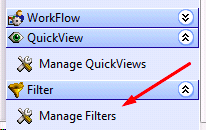
On the right-hand side, click on “Manage Filters”
Click on “new” in the upper left hand corner of the new window that pops up (or press control + n).
Enter whatever criteria you want for the filter. You can select different fields to filter by clicking under “Field Name”. “Test Condition” can be sent to different options like equal to or contains depending on how you want your filter to search. In “Test Value”, put whatever you’d like your field name to be equal to or to contain.
For example, if I wanted to filter to show all PNCs who lived in Madison, I could create a filter as follows:

Note that you can add more than one more if you want your filter to look for multiple conditions. Click save and then your filter will show up on the right hand side of the Contact or Client window. Simply click on it to utilize it.
Comments
0 comments
Please sign in to leave a comment.