Requesting Records:
- In PM open Client File
- Double click on the client you are requesting records for.
- Select the Records Requested tab, which is located to the top right of your screen (the last tab).
- Similar to Journal Notes, right click to add a new entry or click the paper like icon in the left hand corner.
- The screen will look like this:
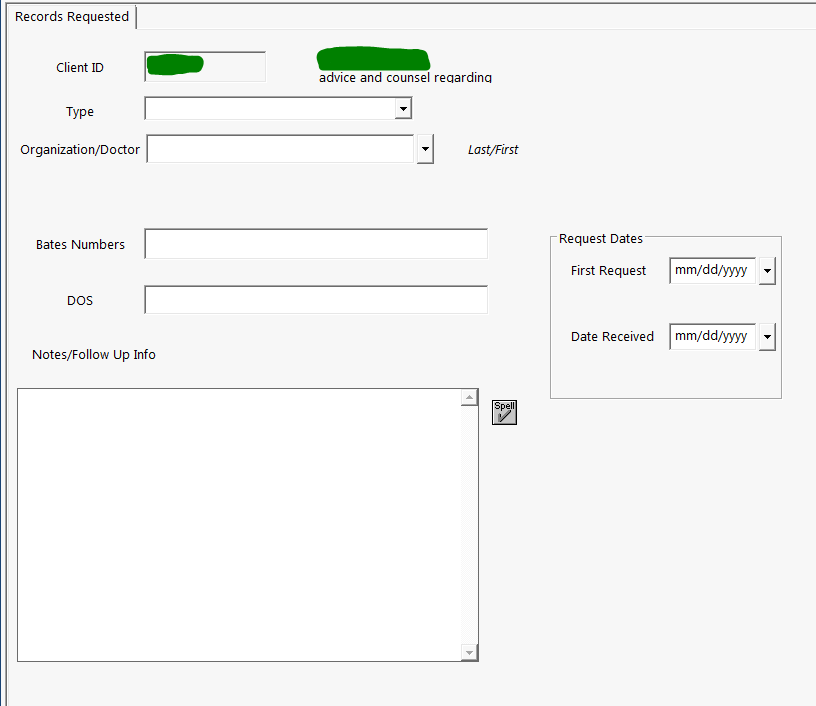
- First, use the drop down arrow for Type to select the type of records you are requesting.
- Next, type in the name of the facility or doctor you are requesting documents from.
- If the box does not automatically find the name you are looking for, just click the down arrow on the right and add in the facility.
- To add a new facility select the paper looking icon in the top left corner. You do not need to fill in all the fields, but make sure to enter the name of the facility and the Category (Doctor, Employer, etc.)
- Then use the drop down menu by First Request Date and select the date accordingly.
- Record any additional information or follow-up information in the Notes/Follow Up Info section.
Once you receive the Records:
- Record the Date Received in the corresponding box.
- If applicable to the requested document:
- Enter the BATES numbers into the corresponding box.
- Then, next to Dates of Service (DOS) record the date range for the records you received.
- I.e. 04/08/19 - 06/03/19
Comments
0 comments
Please sign in to leave a comment.