Here is what the error will look like:
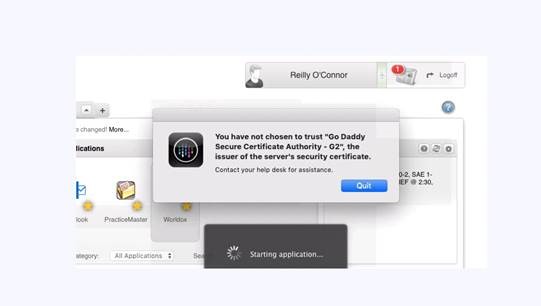
Steps to resolve error:
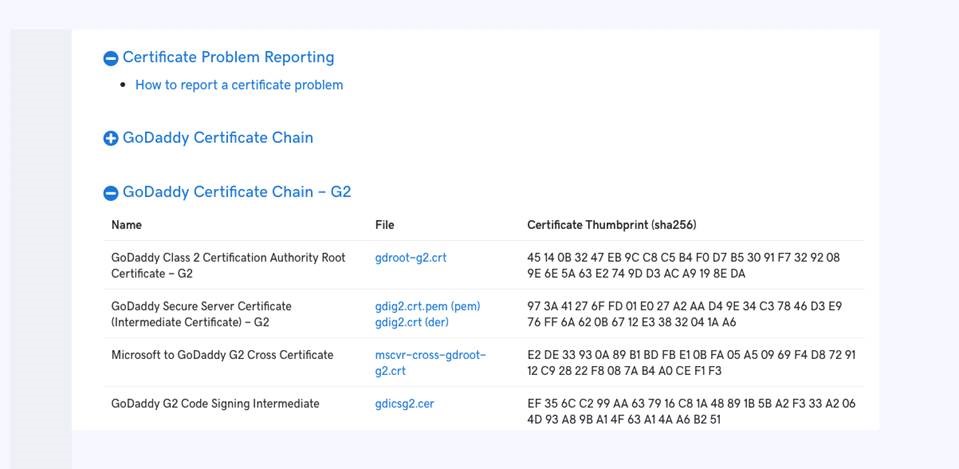
Step 1: Follow this link to the site for the intermediate certificate download.
https://certs.godaddy.com/repository
Step 2: Double-click on the download that says (pem) at the end.
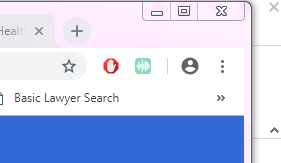
Step 3: Open Chrome and go into settings. (Click the three dots in the corner of the browser.)
Step 4: Within settings scroll down until you see “advanced” and click on it.
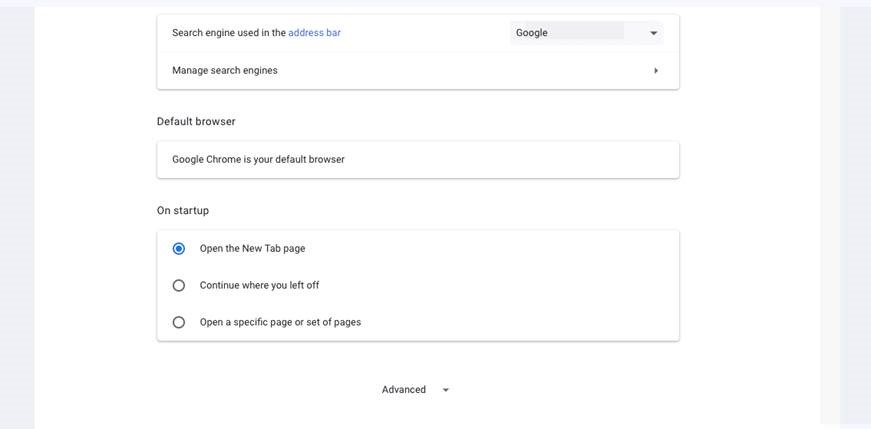
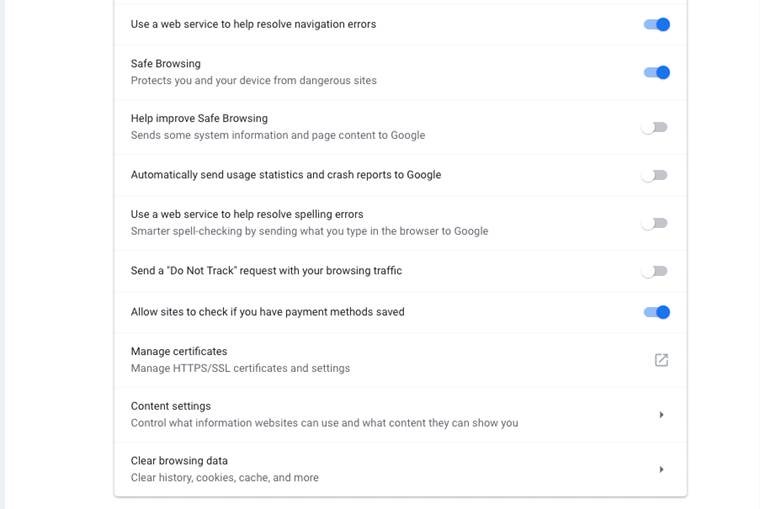
Step 5: Scroll down until you see “Manage certificates” and click on the little box with the arrow.
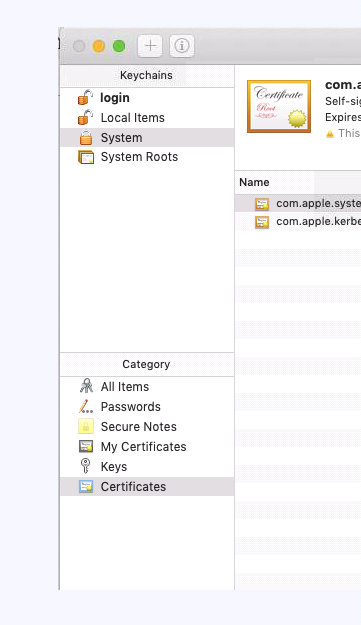
Step 6: Your keychain will open up. Under Keychains click ‘System’ and under Category click ‘Certificates’. The grayed out plus sign should no longer be gray, click on it. ( This sign should be located either at the top of the keychain window or the bottom of the keychain window, depending on what version of software you are on.)
*I have noticed that this step is not the same for every computer. Things to try:
- Try unlocking your keychain by clicking the lock and entering your password. Then try this step again.
- Try clicking different combinations until the plus sign is no longer grayed out and it allows you to see your finder folders.
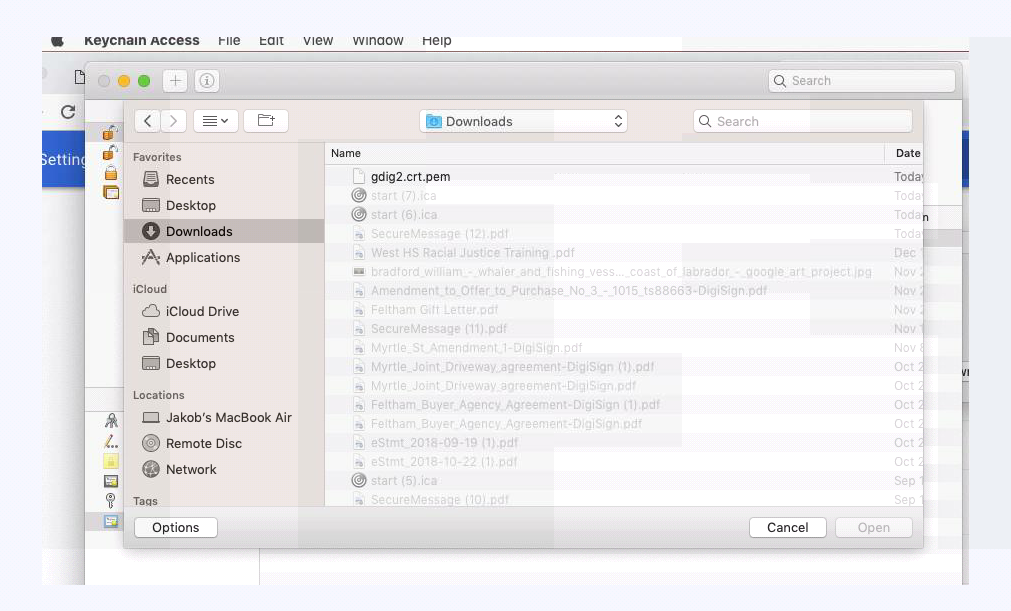
Step 7: This will bring up your finder. Go into downloads and find the .pem file that we downloaded in the first step.
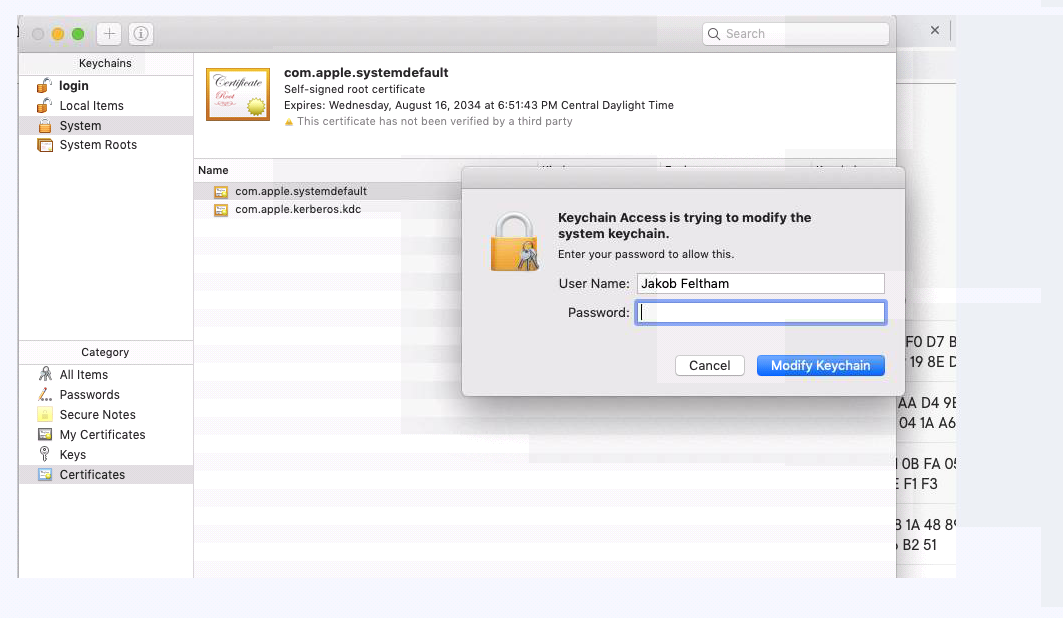
Step 8: Double- click on the .pem file. Enter your password. Close the keychain. Log off of Webtop.
Step 9: Go to the top of your computer screen and click on the swirly Citrix icon. Select quit. Then try to log back into Webtop and start your programs normally.
Comments
0 comments
Please sign in to leave a comment.