On your Word Document with the envelope format, select "Print".
Under Settings, use the carrot drop down button to change "Print All Pages" to "Print Current Page".
Under Printer, select Konica Minolta.
Then go to "Printer Properties".
In the Page Setup tab:
Under Paper Size select "Envelope Com10".
Under Paper Source select "Auto".
Make sure to uncheck "Print on both sides".
In the Advanced tab:
Input the number of copies needed.
Select "Print".
At the Konica printer
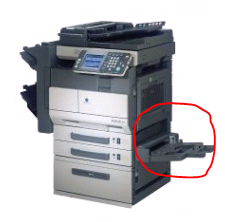
Feed envelopes into the Auto tray on the lower right side with the envelope flap facing up like the photo below:
It helps to guide envelopes into the feeder to prevent jams.
When the printer finds a jam, open the right side of the printer using the light grey lever. Remove any jammed envelopes and shut the printer door.
Place envelopes back on the Auto tray and the printer will resume printing automatically.
You can verify that the printing will resume on the Konica screen. On the far left side you will see the print job status as "Waiting" then "Processing".
Verify on the Konica screen that the Paper Tray is on "Auto Detect".

Comments
0 comments
Please sign in to leave a comment.