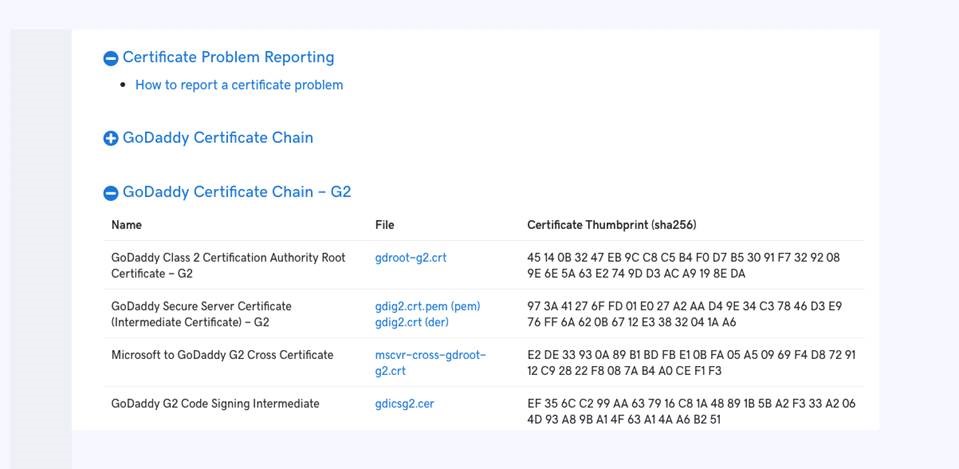
Step 1: Follow this link to the site for the intermediate certificate download.
https://certs.godaddy.com/repository
Step 2: Double-click on the download that says (pem) at the end.
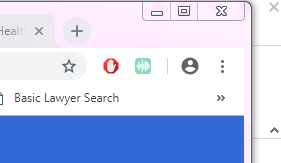
Step 3: Open Chrome and go into settings. (Click the three dots in the corner of the browser.)
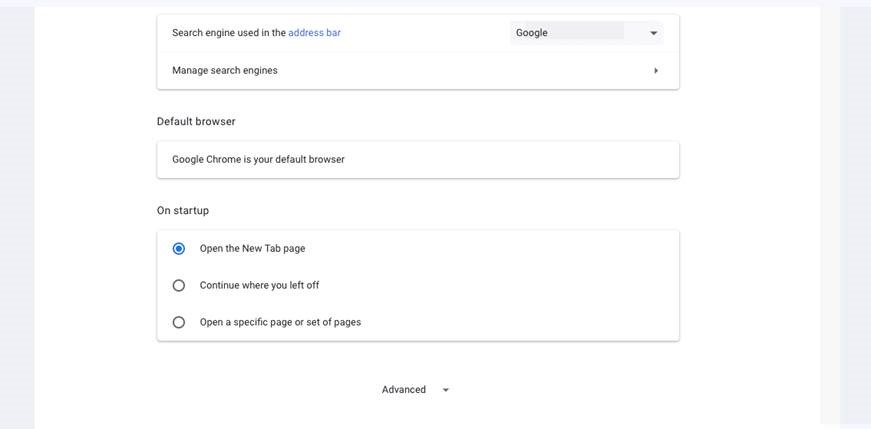
Step 4: Within settings scroll down until you see “advanced” and click on it.
Step 5: Scroll down until you see “Manage certificates” and click on the little box with the arrow.
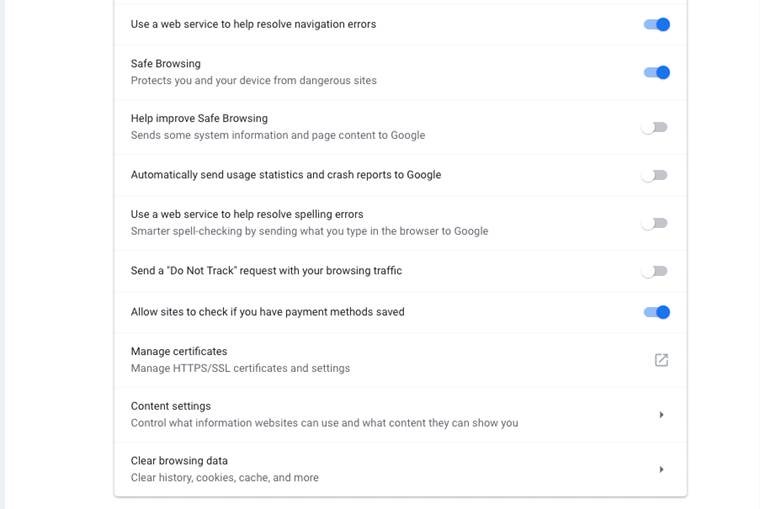
Step 6: This will open your certificate manager
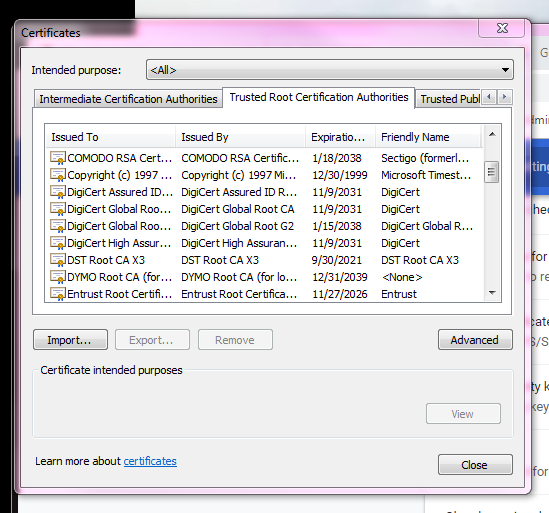
Step 7: Click "Import" and within the Wizard click "Next"
Step 8: Click "Browse". Then within the browse window, select "All Files" from the drop down menu on the bottom right.
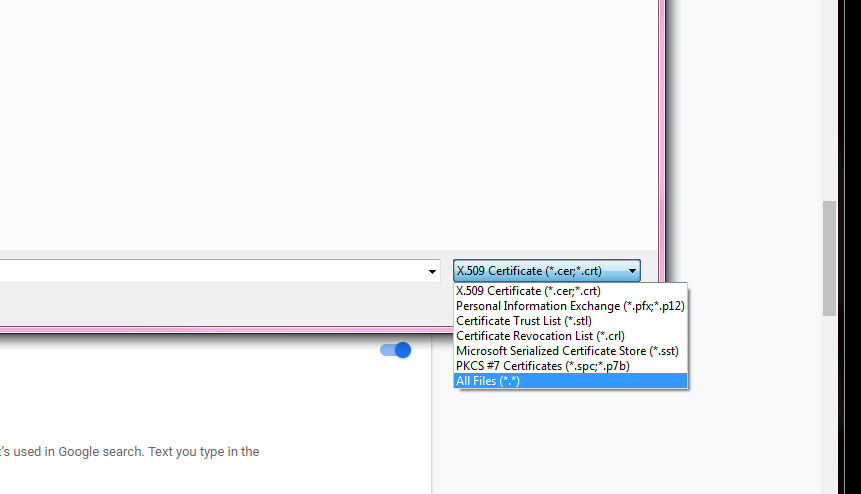
Step 9: Find the .pem file you downloaded in step 1 (typically in downloads). Then click open and select "Automatically categorize..."
Then you should be able to use Webtop!
Comments
0 comments
Please sign in to leave a comment.